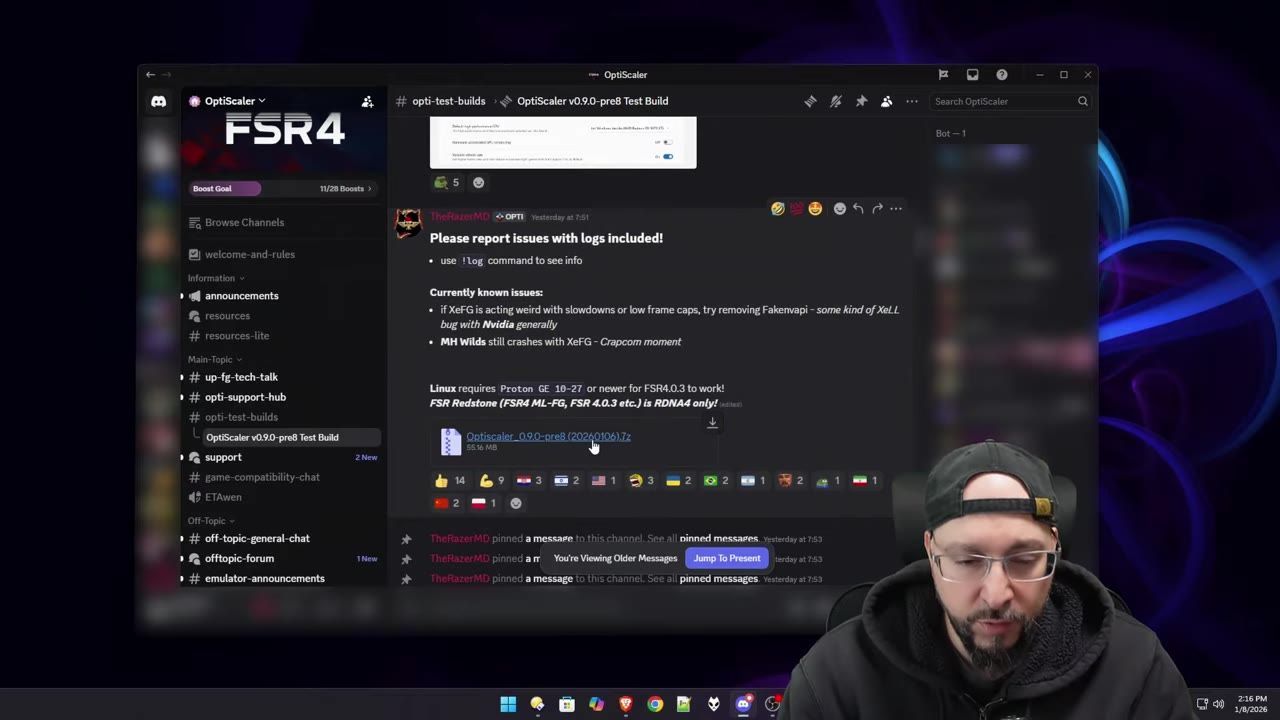
To optimize performance in Enshrouded, install Optiscaler with DLSS or XCSS upscaling and configure both tool settings and in-game graphics to align with your hardware capabilities.
Installing Optiscaler for enhanced performance
Optiscaler is a key tool for improving performance in Enshrouded. Follow these steps to install it successfully:
steps
- Download Optiscaler: Obtain the latest version, such as the v0.9.0 build, from the developer's Discord server.
- Extract files: Use a tool like 7-Zip to extract the necessary files. Avoid extracting license files and Linux-related files.
- Locate your installation folder: In Steam, click "Manage" on the Enshrouded game, then "Browse Local Files" to find the game directory.
- Overwrite files: Drag the extracted Optiscaler files into the game folder. Overwrite existing files if prompted.
- Run setup: Double-click the provided batch file (
setup_windows.bat) to automatically configure the required wrappers for Windows.
Configuring Optiscaler settings
Setting Optiscaler up correctly after installation ensures it delivers optimal performance aligned with your hardware:
steps
- Select the Vulkan wrapper: During setup, choose
whim.dllas it is compatible with Enshrouded. - Optimize based on GPU: Select options tailored for your hardware, such as DLSS or Reflex for NVIDIA cards, or similar for AMD/Intel GPUs.
- Adjust additional settings: You can later fine-tune features like DLSS spoofing or anti-lag by editing the
Optiscaler.inifile.

Command prompt displays Optiscaler wrapper selection screen with filename options. — GeekJ
Fine-tuning graphics settings in Enshrouded
Adjusting in-game settings further enhances the balance between visual quality and performance:
steps
- Access display settings: Navigate to the "Display" and "Graphics" menus in Enshrouded's settings.
- Enable upscaling: Select XCSS or DLSS for better graphical clarity and scalability.
- Optimize resolution and textures: Adjust scaling and texture quality according to your hardware's capabilities to improve gaming fluidity.
Using lossless scaling for smooth gameplay
Lossless scaling tools can be used alongside Optiscaler for a more seamless gaming experience:
steps
- Launch lossless scaling: Open the tool via Steam and select LFG3.1 mode for frame generation and scaling.
- Choose settings: Opt for WGC as the capture API and set a fixed scaling multiplier of 2 for stability on most systems.
- Test changes: Verify the improvements in the game by checking FPS and visual quality.

Lossless Scaling tool interface showing LSFG3.1 mode selected during gameplay. — GeekJ
Troubleshooting and verification
If you encounter issues or want to confirm that the changes are applied successfully, follow these steps:
FAQ
How do I set up optimal graphics settings in Enshrouded step by step?
To optimize graphics in Enshrouded, install Optiscaler from the developer's Discord and select the compatible Vulkan wrapper. Configure GPU-specific settings (e.g., DLSS or Reflex), adjust in-game settings like display scaling and texture quality, and use a lossless scaling tool for smoother gameplay. Further enhancements can be tested and verified by checking FPS and stability during gameplay.
Sources
Screenshots on this page are frames from the videos below, used to illustrate the steps they describe. All rights remain with their creators.
- Enshrouded: Double Your FPS with Optiscaler + Lossless Scaling — GeekJ, January 9, 2026
Checked against:
- We're still cooking for 1.0. Here's some news you may have missed! — CoolUsernameBro, 2026-08-27
- Changelog for Hotfix #42 v.0.9.1.2 — CoolUsernameBro, 2026-06-29