To improve FPS in Project Zomboid, you can allocate additional RAM, adjust graphical settings to reduce strain, and modify sandbox settings to manage complexity.
Set RAM Allocation to Optimize Performance
Allocating more system RAM to Project Zomboid can improve performance, especially in builds with large mod lists or complex saves.
steps
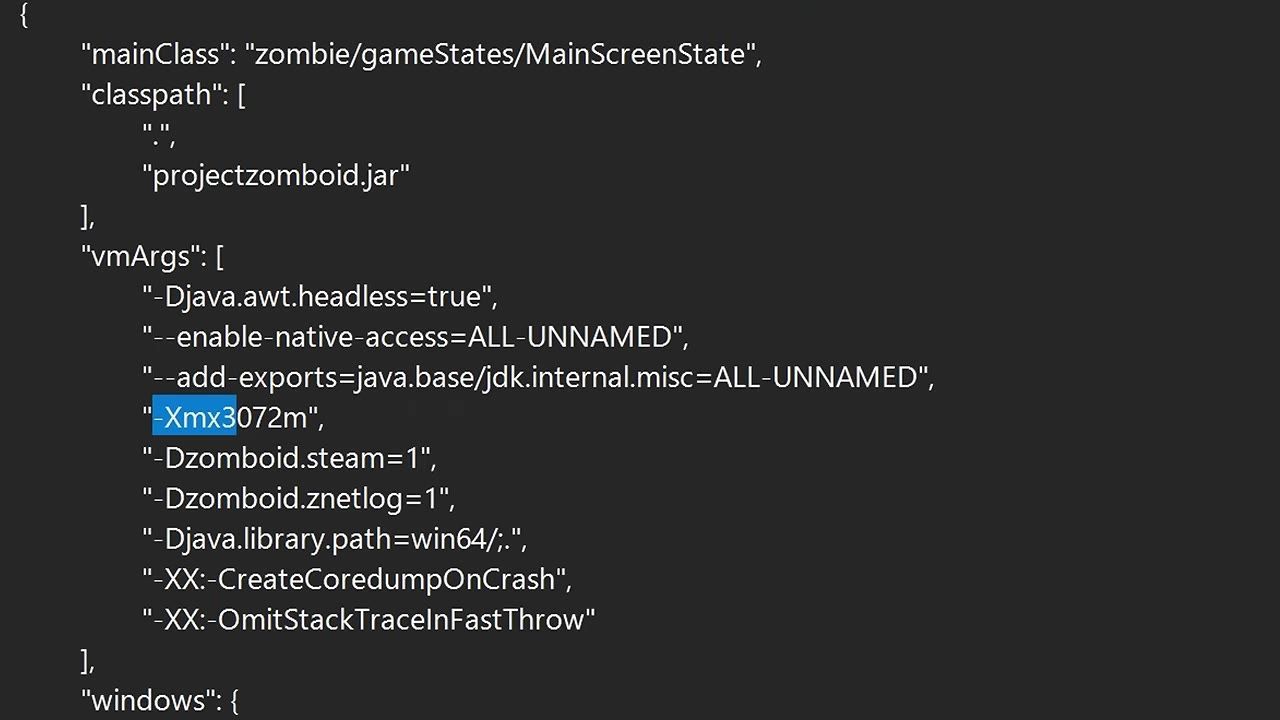
Locate the Project Zomboid 64 JSON file by right-clicking the game in Steam, selecting "Manage," and browsing the local files.
Open the JSON file in Notepad and find the line starting with
XMX.- By default, it is set to 3 GB (
3072). Adjust this number upwards, but avoid going over 50% of your system's total RAM to prevent system instability. A good starting point for many systems is 8 GB.
- By default, it is set to 3 GB (
Save the file directly without using "Save As" to avoid formatting issues.
Changes may revert if you verify game files, switch versions, or update the game. Keep a note of the adjusted value for convenience.
Adjust Sandbox Settings for Better FPS
Sandbox settings allow players to control in-game complexity by reducing graphical and entity-related load.
steps
- When starting a new sandbox save, adjust "Time Before Corpse Removal" to 24, 36, or 48 hours to reduce performance impact from zombie entities.
- Set "Blood Splat Lifespan Days" to a lower value, such as 1 day, to limit lingering blood textures. Alternatively, turn blood levels down or off for additional performance gains.
- If mid-save, activate debug mode through Steam by adding
-debugin the launch options. Access sandbox settings mid-game to further tweak corpse removal and blood splat settings, applying changes as needed.

The sandbox settings menu highlights 'Time Before Corpse Removal' and 'Blood Splat Lifespan Days' options. — AwpShorts
Modify In-Game Graphical Options
Tweaking graphical settings can significantly improve FPS by lowering resource-intensive visuals.
steps
- Lower the resolution and maximum texture sizes.
- Enable texture compression, simple clothing textures, and simple weapon textures to reduce GPU load.
- Disable features such as corpse shadows, dynamic skybox, and ragdoll physics for cleaner performance.
- Adjust water quality, environment reflections, puddle quality, fog effects, and weather rendering to medium or low.
- Disable 3D item placement and high-resolution placed items if there are many objects on the ground.

Graphical settings menu with options for blood decals and corpse shadows adjustments. — AwpShorts
Sandbox and Debug Mode Tweaks
Advanced modifications through sandbox and debug mode allow players to balance performance versus graphical fidelity.
steps
- Activate debug mode by entering
-debugin the Steam properties launch options. - Navigate to the debug menu in-game and modify sandbox settings like blood decals, lighting updates, and ragdoll physics.
- Test graphical presets and specific settings like medium dynamic skybox or legacy fog effect to find the perfect balance.

The debug menu is opened, highlighting the 'Sandbox Settings' option. — AwpShorts
Final User Interface Optimizations
UI rendering settings can yield small but noticeable performance improvements.
steps
- Enable UI off-screen rendering to optimize interface performance.
- Lower UI rendering FPS to as low as 10 if additional performance gains are needed, choosing values based on your hardware's capacity.

The Project Zomboid UI settings menu allows users to adjust rendering FPS and other visual options. — AwpShorts
FAQ
how to increase fps in Project Zomboid Build 42
Improve performance by increasing RAM allocation in the Project Zomboid JSON file, adjusting sandbox settings, and modifying graphical settings like disabling corpse shadows and reducing texture sizes.
optimal settings for Project Zomboid performance
The optimal settings depend on hardware but include enabling texture compression, reducing resolution, lowering water and fog quality, disabling 3D items, and balancing dynamic effects such as skybox and puddles. Debug mode can help refine sandbox settings and UI customization can further enhance FPS.
Sources
Screenshots on this page are frames from the videos below, used to illustrate the steps they describe. All rights remain with their creators.
- How To Improve Performance in Project Zomboid - (Build 42+) — AwpShorts, August 10, 2026
Checked against:
- 42.20.4 STABLE & 42.19.2 UNSTABLE & 41.78.21 LEGACY Hotfixes Released — AmazingSully, 2026-08-26
- 42.20.3 STABLE Hotfix Released — AmazingSully, 2026-08-17
- 42.20.2 STABLE Hotfix Released — AmazingSully, 2026-08-05