Adjust your settings for optimized network performance and address common bugs using the latest patch updates for Grounded 2. Follow this guide to ensure smooth co-op gameplay.
Check Game Updates
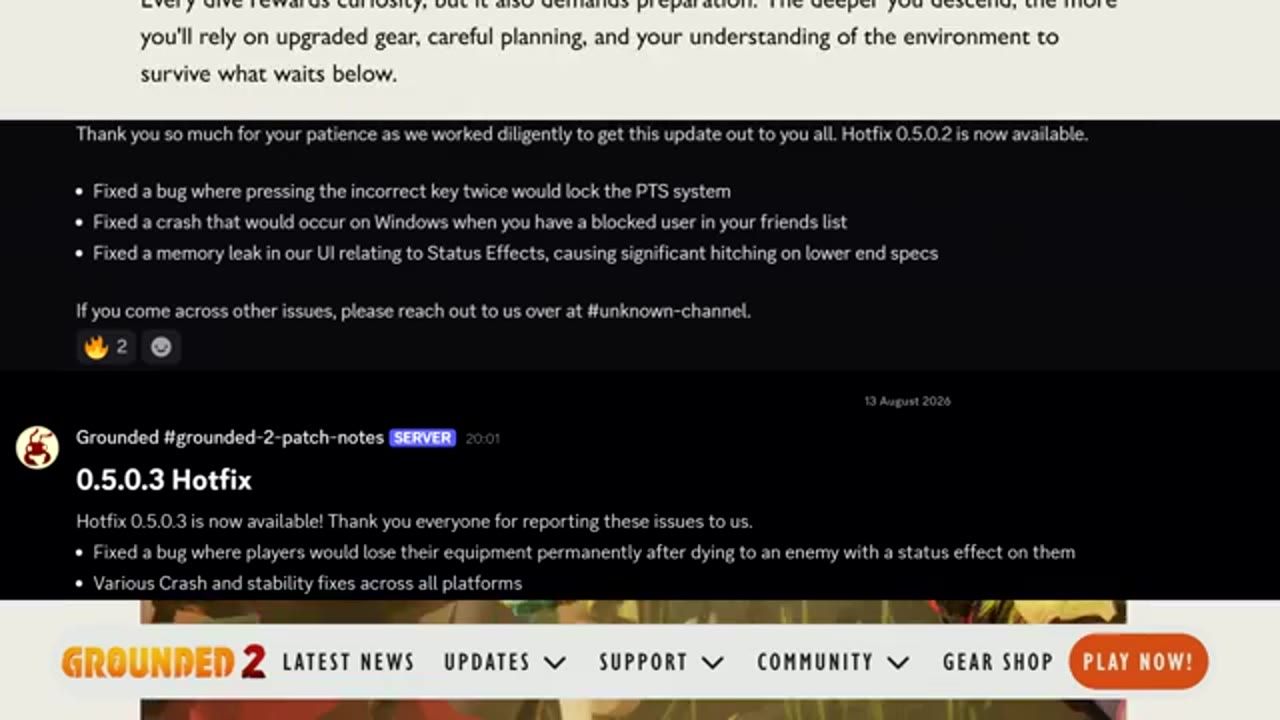
Ensure your copy of Grounded 2 is updated to the latest version before optimizing multiplayer settings. The latest patch contains critical bug fixes that improve stability and resolve issues like disappearing weapons, PS5 crashes, and multiplayer save/load bugs.
prerequisites
- Verify that your game is updated to the latest available patch.

Patch notes for Grounded 2 show recent hotfix updates and bug fixes. — Jade PG CRAFTED
Network Optimization
A reliable network connection is essential for smooth co-op gameplay in Grounded 2. Improve server stability and reduce lag by configuring your internet connection effectively.
steps
- [Step removed]
- [Step removed]
- [Step removed]
Adjust In-game Settings
Optimize Grounded 2's in-game settings to enhance multiplayer performance. Lowering visual settings and prioritizing network-oriented adjustments can reduce lag and improve co-op stability.
steps
- [Step removed]
- [Step removed]
- [Step removed]
Known Issues and Workarounds
Some multiplayer challenges and bugs may persist despite optimization. Below are common issues and their workarounds.
Final Steps to Test Co-op Setup
Once you’ve optimized your network and settings, perform a test run to ensure everything is functioning as intended.
steps
- [Step removed]
- Communicate with co-op partners about potential issues experienced during gameplay.
- Report any unresolved bugs using the official Grounded 2 issue tracker.
FAQ
How to optimize Grounded 2 settings for co-op?
[FAQ answer removed]
Best settings multiplayer Grounded 2?
[FAQ answer removed]
Fixing performance multiplayer Grounded 2?
Apply the latest game patches to resolve bugs and avoid loading saves during critical gameplay sections like MIX.R events.
Sources
This guide was written from the videos below. All rights remain with their creators.
- GROUNDED 2 UPDATE FIXES! Potato Buggy And Roadmap Review! Whats Going On With me And Grounded? — Jade PG CRAFTED, August 13, 2026
Checked against:
- Help us Decide our Next Update Name! — Obsidian Aarik, 2026-08-25
- Patch 0.5.0.4 Has Been Released — Obsidian Aarik, 2026-08-19
- 0.5.0.3 Hotfix Has Been Released — Obsidian Aarik, 2026-08-13