To fix performance issues in Subnautica 2, optimize your graphics settings by lowering demanding settings such as effects and shadows, and enable upscaling techniques like DLSS or TSR.
Prerequisites for Optimization
Before optimizing your settings, ensure your system is prepared for the latest updates and requirements.
prerequisites
- Update your Windows OS and GPU drivers to the latest versions to ensure compatibility and stability.
- Confirm that your system meets the minimum requirements for Subnautica 2.
- Restart Steam to apply any recent updates or patches to the game.
Optimizing Graphics Settings for Better FPS
Tweaking graphics settings is key to improving FPS and reducing performance issues. Follow these adjustments for optimal results:
steps
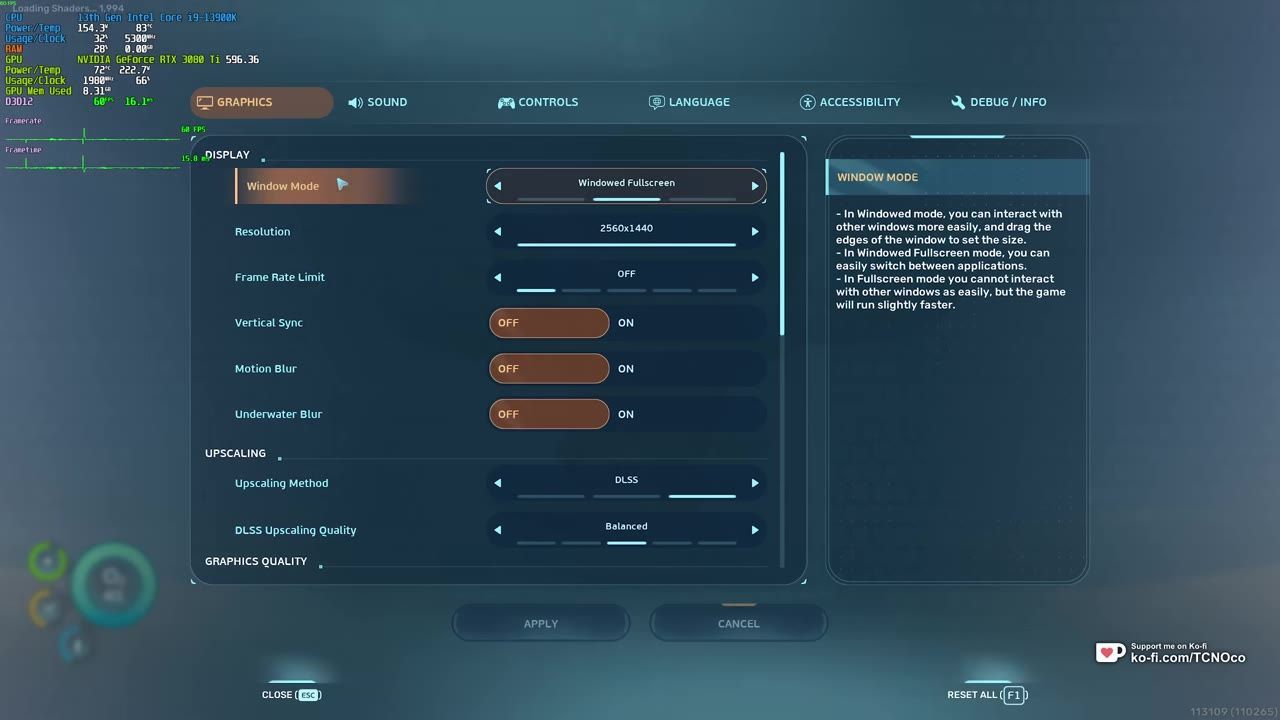
- Set the Display Mode to Full Screen: This provides slightly better performance compared to Windowed mode on modern systems.
- Match Resolution to Your Display's Native Setting: Ensures sharp visuals; lower it if performance is severely impacted, pairing this reduction with upscaling techniques.
- Vertical Sync: Turn this setting off unless you notice screen tearing.
- Motion Blur and Underwater Blur: Disable these options if you prefer a clearer image or experience motion sickness.
- Enable Upscaling:
- DLSS: Use if you have an Nvidia graphics card for better visual clarity and FPS boosts.
- TSR: Select as an alternative if you are not using an Nvidia GPU.
- Lower Effects and Shadows Settings: Reducing these from "Epic" to "High" or lower improves FPS significantly.
- Adjust Additional Graphics Options: Fine-tune the following based on hardware capabilities:
- View Distance: Lower this to boost performance while maintaining acceptable gameplay quality.
- Textures: Leave on high or epic unless your system has minimal VRAM. Lowering this setting impacts visual quality noticeably.
- Clouds: Reducing this setting notably improves FPS in above-water gameplay.
- Global Illumination, Reflections, Foliage, Post-Processing, and Landscape: Keep these on high, as lowering them has minimal-to-no FPS impact.

The graphics settings menu displays upscaling options for DLSS with quality selections. — TroubleChute
Testing and Benchmarking Changes
Once you've adjusted your graphics settings, you'll want to validate their effectiveness and observe the improvements.

Benchmark details, including CPU, GPU usage, and FPS, overlay an underwater game scene. — TroubleChute
FAQ: Common Questions
FAQ
guide to fixing performance issues in Subnautica 2
Fix performance issues by updating your drivers, lowering settings for demanding features such as effects and shadows, enabling DLSS or TSR upscaling, and avoiding overly high presets.
how to improve FPS in Subnautica 2
Improve FPS by reducing graphics settings like effects and clouds, enabling DLSS for Nvidia users or TSR for others, and testing changes using performance benchmarks with tools like Steam's overlay or RivaTuner.

The settings menu displays DLSS upscaling options and quality settings. — TroubleChute
Sources
Screenshots on this page are frames from the videos below, used to illustrate the steps they describe. All rights remain with their creators.
- BEST Optimization Guide | Subnautica 2 | Max FPS | Best Settings — TroubleChute, May 14, 2026
Checked against:
- Subnautica 2 Early Access 1.2 - Buddy System Update — virtualdon, 2026-08-19