To maximize FPS in Subnautica 2, lower shadows, effects, and clouds settings, consider enabling upscaling, and turn off motion blur and vertical sync.
Initial Setup Check
Ensure your system is prepared for optimization to achieve the best performance in Subnautica 2.
prerequisites
- Verify your Windows installation and graphics drivers are fully updated.
- Set your display resolution to match your monitor's native resolution to avoid blurriness.
Optimizing Visual Settings
Adjust these settings in the graphics menu to enhance performance while maintaining visual clarity.
steps
- Consider enabling upscaling using DLSS or TSR; this can boost FPS and improve visual clarity. If an Nvidia graphics card is available, DLSS may offer better visual improvements with slightly less performance impact.
- Turn off vertical sync unless experiencing screen tearing for smoother gameplay.
- Disable motion blur and underwater blur to reduce visual distractions, particularly if prone to motion sickness.
- Use medium or low graphics quality presets, depending on your hardware capacity.
- Lower settings for shadows, effects, and clouds to medium or low for impactful FPS improvements.

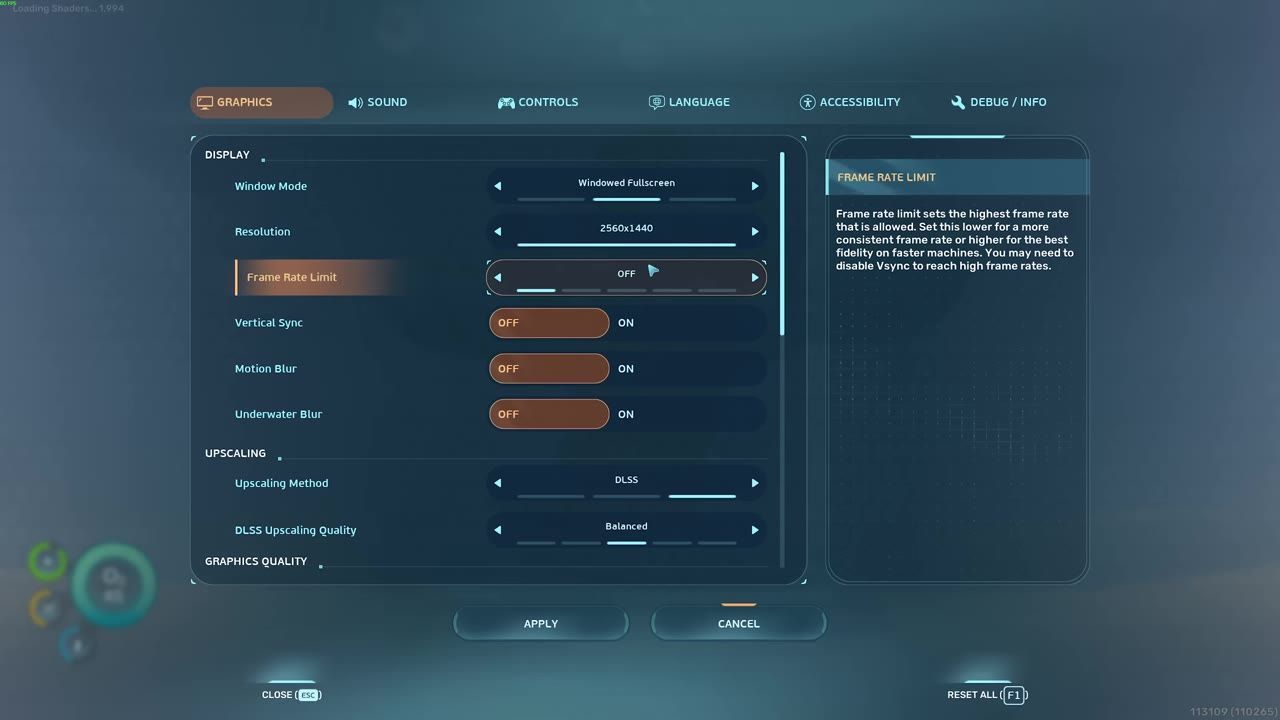
Graphics settings menu displays options such as resolution, frame rate limit, vertical sync, motion blur, and underwater blur settings. — TroubleChute

The settings menu displays upscaling options such as DLSS and TSR with detailed descriptions. — TroubleChute
Fine-Tuning Performance
For players with specific hardware limitations, additional adjustments can help improve FPS.
Choose settings based on hardware
Consider enabling TSR upscaling if DLSS is unavailable, particularly for AMD or Intel users—it provides good FPS increases though visual clarity may not match DLSS.
Adjust view distance settings based on the results of your FPS testing. Lowering it can reduce computational load, but be aware that changes to view distance may have subtle impacts on performance.
Set texture quality based on your available VRAM. For systems with less VRAM, lower texture quality to reduce memory strain.
Testing and Observation
Evaluate the impact of your optimizations to ensure performance and visuals meet your expectations.
steps
- Run the hardware benchmark available in the graphics settings menu.
- Monitor FPS using third-party tools such as RivaTuner or Steam Overlay.
- Iteratively tweak settings to fine-tune performance without significantly sacrificing visual fidelity.

A unique tree structure is displayed alongside visible hardware benchmark and FPS overlay data. — TroubleChute
Troubleshooting Common Issues
If performance issues persist, try addressing underlying causes outside of the game settings.

The game settings menu displays adjustable graphics options including shadows, view distance, textures, shading, foliage, and effects. — TroubleChute
FAQ
detailed guide for Subnautica 2 graphic settings for FPS gains
Follow the outlined optimization steps above, focusing on lowering shadows, effects, and clouds settings, disabling motion blur and vertical sync, and enabling upscaling like DLSS or TSR for impactful performance improvements.
top settings for smoother gameplay in Subnautica 2
Enable upscaling with settings like DLSS or TSR, turn off motion blur and vertical sync, and adjust shadows and effects to lower settings for a smoother experience.
Sources
Screenshots on this page are frames from the videos below, used to illustrate the steps they describe. All rights remain with their creators.
- BEST Optimization Guide | Subnautica 2 | Max FPS | Best Settings — TroubleChute, May 14, 2026
Checked against:
- Subnautica 2 Early Access 1.2 - Buddy System Update — virtualdon, 2026-08-19