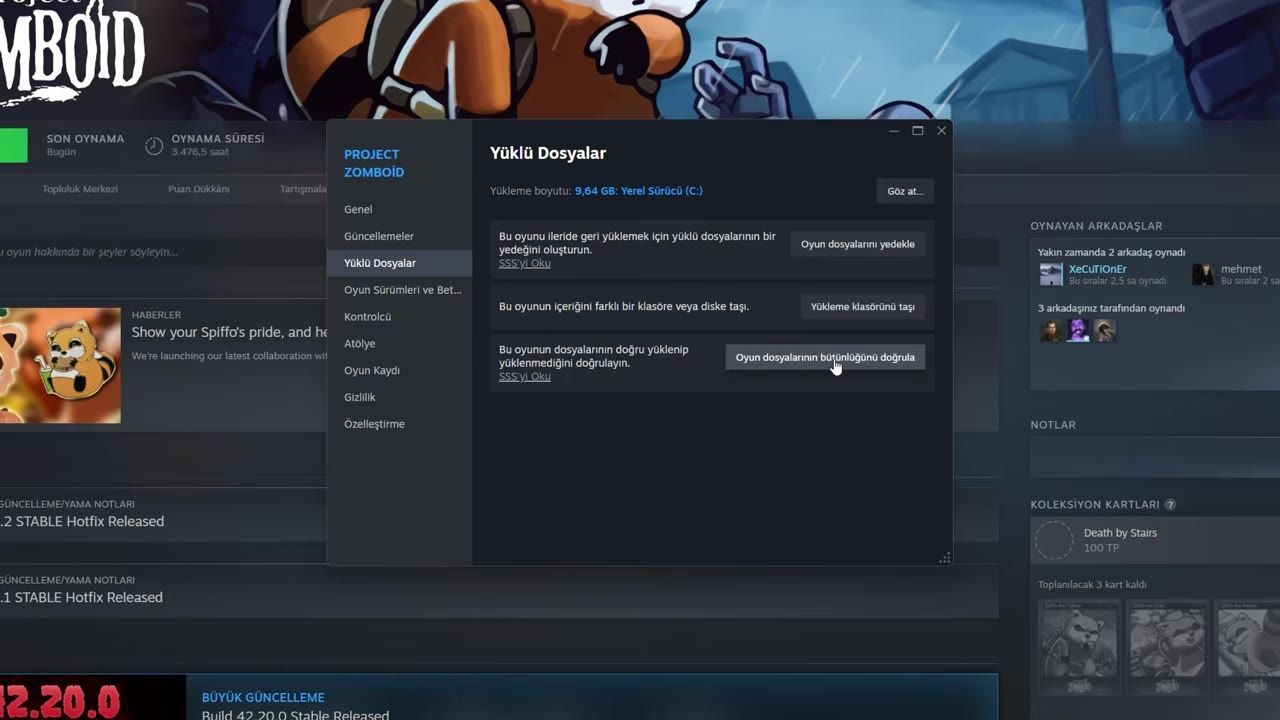
To resolve crashes in Project Zomboid, verify game files through the launcher and adjust RAM allocation to optimize resource usage.
Verify Game Files through the Launcher
Ensuring your game files are intact is a crucial step in avoiding crashes and freezes. Follow these steps:
steps
- Open the Project Zomboid launcher.
- Click on the "Verify Integrity of Game Files" option.
- Wait for the process to complete—it will fix any broken or missing files.
- After verifying game files, reapply custom configurations such as RAM settings, as verifying files may reset these changes.
Adjust RAM Allocation
Proper RAM allocation ensures the game has sufficient memory to avoid crashes during gameplay. You can adjust the RAM usage by modifying configuration files.
steps
- Locate the configuration file named "project zone size 64 Jason" in the game directory.
- Open the file using Notepad and find the
XMXline, which determines the maximum allocated RAM (e.g.,-Xmx3072mfor 3GB of RAM). - Replace the default value with less than half of your system's total RAM (e.g., 12GB for a system with 32GB RAM).
- Save the changes and restart the game to apply them.

The settings file includes the line defining RAM allocation ('-Xmx3072m'). — Oyunun Gerçek Sesi
Prevent Freezing and Optimize In-Game Settings
Performance-heavy graphical features can contribute to freezing. Adjust these settings to reduce strain on your system.
steps
- Lower settings for Blood Decals and Corp Shadows.
- Disable non-essential features, such as 3D items and dynamic skybox.
- Optimize resolution and frame rate to suit your monitor's capabilities (e.g., match FPS to a high-refresh monitor).

The settings menu displays graphical options including Blood Decals. — Oyunun Gerçek Sesi
Check Sandbox Options
The sandbox mode settings can impact performance, especially when dealing with environments populated by multiple objects and effects.
steps
- Adjust corpse removal times to reduce the load caused by on-screen entities.
- Tweak blood stain degradation to limit excessive rendering requirements.
- Optimize environmental settings, including erosion and tree growth, to avoid overloading the game engine.
Long-Term Maintenance
FAQ
Project Zomboid Build 42 keeps crashing on load
You can fix crashes in Build 42 by verifying the integrity of the game files from the launcher to ensure all files are intact. Adjusting RAM allocation in the configuration file can prevent issues related to inadequate memory.
Why does Project Zomboid freeze during gameplay?
Freezing during gameplay is often caused by performance-heavy graphical settings or excessive strain from sandbox entities, such as zombies, blood decals, and corpses. Lower these settings and optimize your graphical options to reduce the load on your system.
Sources
Screenshots on this page are frames from the videos below, used to illustrate the steps they describe. All rights remain with their creators.
- Project Zomboid'te FPS ve RAM Ayarı Nasıl Yapılır? — Oyunun Gerçek Sesi, August 15, 2026
Checked against:
- 42.20.4 STABLE & 42.19.2 UNSTABLE & 41.78.21 LEGACY Hotfixes Released — AmazingSully, 2026-08-26
- 42.20.3 STABLE Hotfix Released — AmazingSully, 2026-08-17
- 42.20.2 STABLE Hotfix Released — AmazingSully, 2026-08-05