Optimize Palworld performance by adjusting graphics settings to medium or high, applying the Palworld Engine Optimizer mod, and configuring DLSS based on your GPU type.
Set Appropriate Graphics Settings
To achieve better performance in Palworld, ensure that your in-game graphics settings are optimized. Follow these steps:
steps
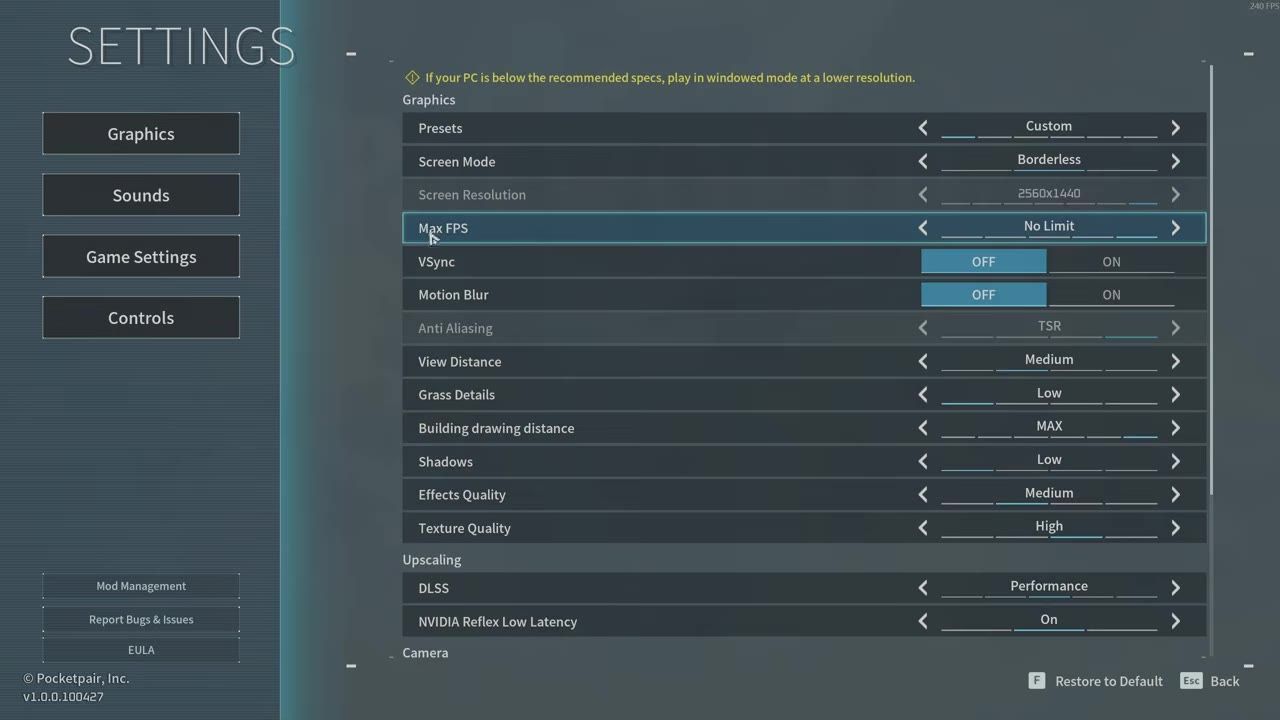
- Screen Mode: Switch to Borderless mode for better compatibility, especially with Windows 11. Full-screen mode might provide slightly better performance, but Borderless allows easier multitasking without significantly affecting gameplay.
- Max FPS: Set your max FPS close to your monitor's refresh rate in your GPU's control panel to prevent overheating and hardware stress. VSync should be turned off unless you experience severe screen tearing.
- Motion Blur: Disable motion blur in the graphics settings; it negatively impacts performance without significant visual benefits.
- View Distance: Set View Distance to medium; you could increase it if your system can manage without a noticeable FPS drop.
- Shadows and Effects Quality: Adjust shadows and effects to medium or low settings to improve frame rates while maintaining visual fidelity.
- Texture Quality: Keep Texture Quality at high for sharper and better overall visuals without sacrificing performance.
- Field of View (FOV): Maximize it to 90 for better in-game visibility and experience.
- Camera Shake: Disable camera shake for a smoother gameplay experience.
- Vertical FOV and Brightness: Leave on default settings unless personal adjustments are preferred.

The graphics settings menu displays adjustments with motion blur off, view distance set to medium, and shadows set to low. — Nova Gaming
Choose the Correct API: DirectX 11 or 12
For optimal utilization of your hardware, select the appropriate graphics API:
Choose the Best Graphics API
DirectX 11: Select this option if your hardware is older (e.g., GTX 1660 or 2000 series) and you’re using Windows 10. It provides better performance for legacy setups but lacks modern features.
DirectX 12: Use this API for newer hardware (e.g., Nvidia 4000 or 5000 series and other modern GPUs), as it is now well-optimized with better performance and more features.
Install the Palworld Engine Optimizer Mod
The Palworld Engine Optimizer mod can significantly enhance your game’s performance by resolving stutter issues and optimizing the engine.
steps
- Download the Mod: Get the Palworld Engine Optimizer mod from Nexus Mods. Follow the download and installation instructions provided on the mod’s page.
- Mod Installation: Run the Palworld optimizer executable file from your desktop or any desired location. If your antivirus flags it as a false positive, it's safe to proceed as Nexus Mods has verified it.
- Enter VRAM Details: Input your GPU's VRAM capacity (e.g., check online for your GPU model).
- Configuration Alternative: If you don’t trust the EXE file, follow the manual configuration method described on the mod’s page. It replaces your engine.ini file within the config folder to eliminate stutters and improve performance.
Advanced FPS Tweaks Using DLSS
DLSS (Deep Learning Super Sampling) significantly boosts FPS on Nvidia GPUs. Configure it based on your GPU type:
before after
Nvidia 4000/5000 Series:
Override DLSS to preset M (version 4.5) using the Nvidia Control Panel. Keep it set to performance mode for optimal FPS gains.
Nvidia 20/30 Series:
Use the game’s native DLSS settings and select balanced or quality mode for better visual fidelity without sacrificing performance.

The Nvidia control panel showcases DLSS override settings for customization. — Jaxinoe
Additional Display Optimization Tips
Enhance the overall smoothness of your display settings with the following tweaks:
Recommended Mods for Performance and Quality of Life
Several mods can enhance Palworld's performance and gameplay experience. Consider installing the following:
FAQ
ultimate guide to optimize Palworld
Optimize Palworld by adjusting graphics settings to medium or high, enabling DLSS (versions based on GPU type), and using mods like Palworld Engine Optimizer for stutter fixes.
Palworld improve game performance
Improve performance by switching graphics API based on hardware (DirectX 12 for modern GPUs and DirectX 11 for older hardware), adjusting in-game settings, and configuring DLSS properly.
how to fix Palworld stutter issues
Fix stutter issues with the Palworld Engine Optimizer mod, which enhances engine configuration and VRAM streaming efficiency.
Sources
Screenshots on this page are frames from the videos below, used to illustrate the steps they describe. All rights remain with their creators.
- Palworld 1.0 Best Settings Guide - Max FPS + Better Visuals — Nova Gaming, July 12, 2026
- BEST MODS for PALWORLD | Essential Mods — Base Bard, July 25, 2026
- ULTIMATE Palworld 1.0 Settings Guide (Fix Lag, Stutters & Boost FPS) — Jaxinoe, July 11, 2026
Checked against:
- v1.0.3: Balance Adjustments & Bug Fixes — pocketpair_dev, 2026-08-12
- v1.0.2.101103:Bug fixes — pocketpair_dev, 2026-07-30
- v1.0.2: Bug fixes — pocketpair_dev, 2026-07-29