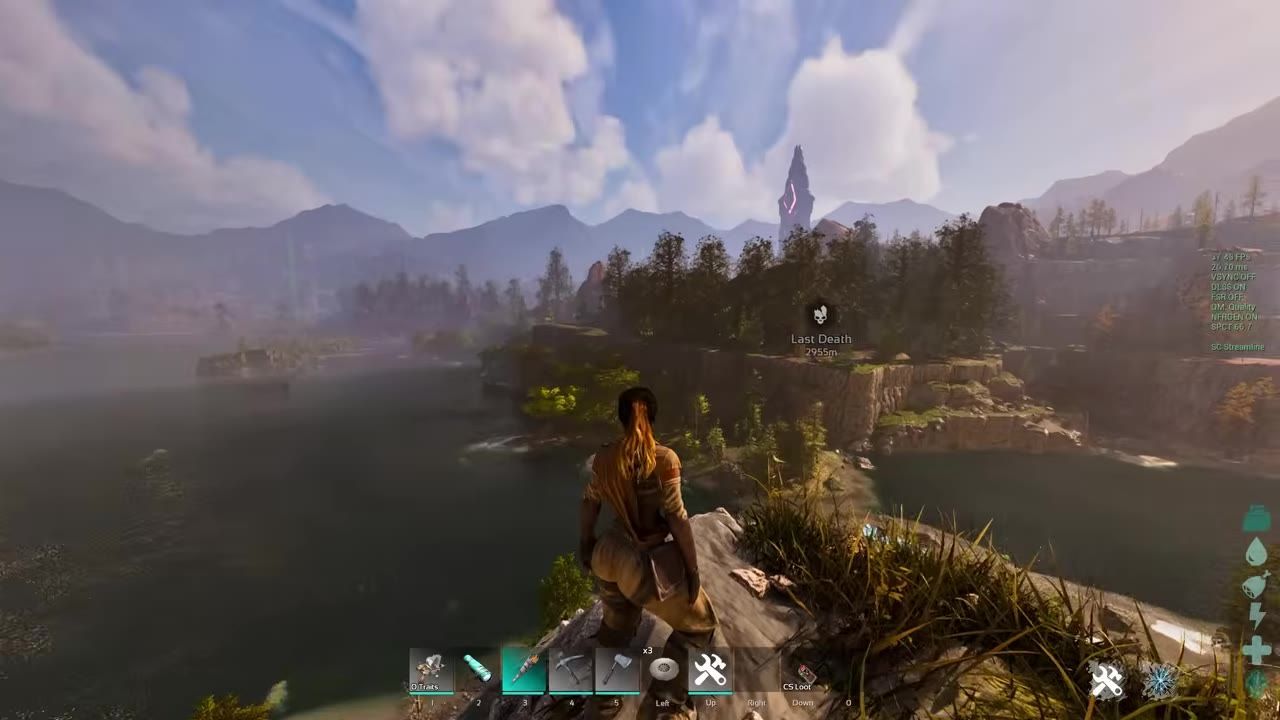
To achieve high FPS in ARK: Survival Ascended, lower most graphical settings such as volumetric clouds, shadows, reflections, and other visual effects; use commands like r.VolumetricCloud 0 and r.ShadowQuality 0; and adjust DLSS for optimized scale.
Set Launch Arguments for ARK
Boost performance by enabling all CPU cores with specific launch arguments in Steam.
prerequisites
- Steam client installed
- ARK: Survival Ascended purchased and installed
steps
- Open Steam and locate ARK: Survival Ascended in your game library.
- Right-click the game title, select "Properties," and navigate to the "General" tab.
- In the "Launch Options" field, type:
-USEALLAVAILABLECORES
- Close the properties window and launch the game for an immediate performance boost.

The Steam properties page for ARK with the launch options field as specified. — TroubleChute
Use Essential Console Commands
Console commands enable you to disable resource-intensive visual effects for a significant FPS increase.
steps
- Press the
Tabkey to open the in-game console during gameplay. - Enter commands to disable specific visuals:
r.VolumetricCloud 0to turn off volumetric clouds.r.VolumetricFog 0to remove fog effects.r.ShadowQuality 0to disable shadows entirely.r.WaterSingleLayerReflection 0to reduce water reflections.
- To reverse changes, replace
0with1for each command to re-enable the effects. - Test the performance impact and adjust as needed.
Optimize Video Settings
Adjust video settings in-game to tailor graphics and resolution for your PC.
steps
- Open the settings menu and navigate to the "Video" tab.
- Match the resolution to your monitor specifications. For lower performance systems, reduce to 1080p or less.
- Switch to "Full Screen" mode to maximize FPS stability.
- Select a graphics preset that aligns with your hardware (e.g., Low, Medium, or High).
- Adjust resolution scaling using DLSS if available. Otherwise, manually lower the scale to improve performance.
- Disable secondary enhancements:
- Turn off "Motion Blur" and "Lens Flare."
- Save changes and reload the map to apply optimizations effectively.

Video settings panel with resolution and graphical presets options visible. — TroubleChute
Adjust Advanced Visual Features
Fine-tune textures and other graphical aspects for improved performance or visual quality.
before after
Default Settings
- High textures
- General illumination at Epic
- Foliage set to High
Optimized Settings
- Textures reduced to Medium for systems with 4GB VRAM.
- Illumination set to Medium.
- Foliage reduced to Low for better FPS.

The advanced graphical settings menu, showcasing adjustable options for textures and global illumination quality. — TroubleChute
Enable Nvidia-Specific Features
Leverage Nvidia features like DLSS and Reflex Low Latency for additional performance gains.
steps
- Navigate to the RTX settings tab.
- Enable DLSS and select the "Quality" or "Performance" modes:
- "Quality" for balanced visuals.
- "Performance" for higher FPS at the cost of graphics fidelity.
- Activate Nvidia Reflex Low Latency for reduced input lag.
- Save all changes and check in-game FPS to validate improvements.

The settings menu shows Nvidia-specific options such as DLSS and Reflex low latency. — TroubleChute
Prepare for Optimization on Older Systems
Tips to enhance performance for users with older or less powerful hardware.
steps
- Drop resolution to 1080p or lower depending on hardware limitations.
- Use commands such as
grass.enable 0to remove non-harvestable grass andsg.FoliageQuality 0to minimize foliage density. - Turn off effects settings like shadows (
r.ShadowQuality 0) and water reflections (r.WaterSingleLayerReflection 0). - Disable visual flair options like light shafts and motion blur.
- Save settings and restart the game for full application of changes.
FAQ
FAQ
best settings for 60 FPS in ARK
To achieve 60 FPS in ARK: Survival Ascended, maximize performance by lowering visual settings such as shadows, volumetric clouds, fog, textures, and foliage density. Enable DLSS and Nvidia Reflex Low Latency if available. Set the resolution to match your monitor or reduce to 1080p for a significant FPS boost.
optimize performance on older systems with ARK
For older hardware, reduce resolution to 1080p or lower, turn off resource-intensive features like grass, shadows, and reflections using console commands, and minimize graphical settings such as textures and illumination. Save changes and reload the map to implement improvement.
Sources
Screenshots on this page are frames from the videos below, used to illustrate the steps they describe. All rights remain with their creators.
- BEST Optimization Guide | ARK: Survival Ascended | Max FPS | Best Settings — TroubleChute, October 28, 2023
- How To Triple Your FPS in Ark Survival Ascended!!!! — Teachers Game Too, October 10, 2025
- BEST ARK Ascended Settings & INI | HUGE FPS BOOST — ZAIGHT, December 24, 2025
Checked against:
- Astraeos Heaven & Abyss Update is now live! — ARK: Survival Evolved, 2026-08-27