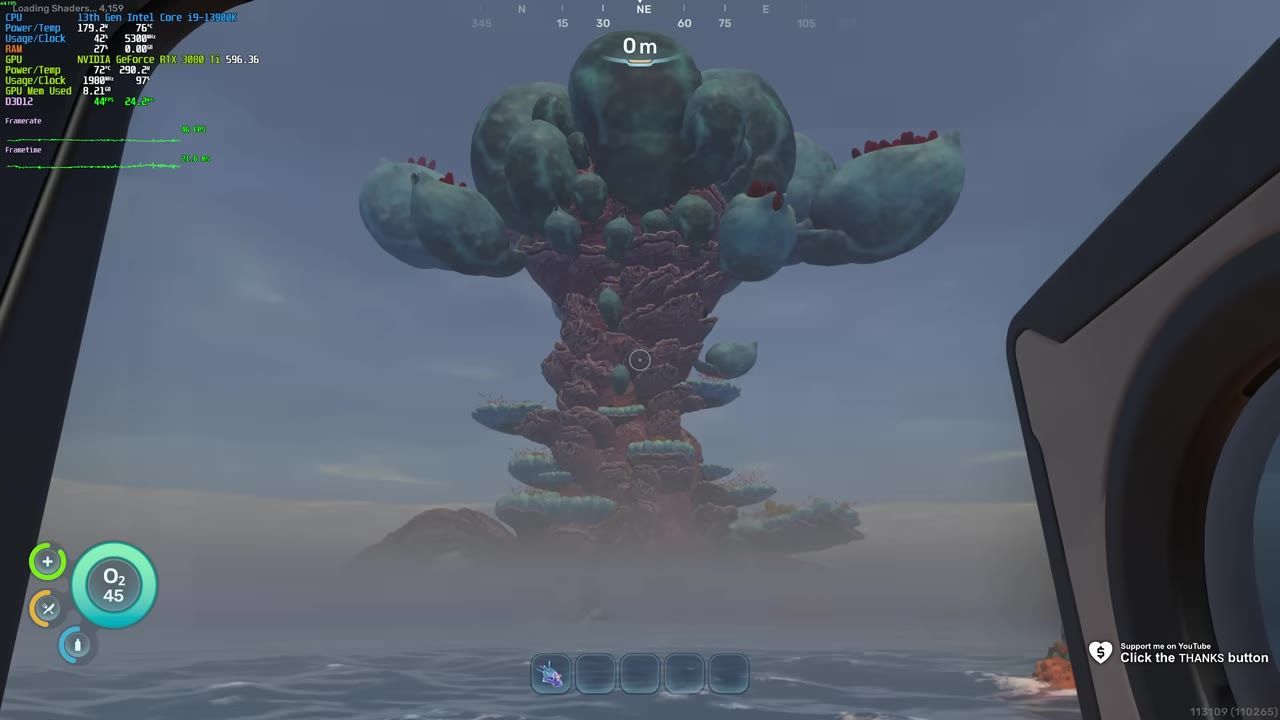
To fix stuttering in Subnautica 2 on mid-range PCs, adjust in-game graphics settings and apply system-level optimizations such as turning off unnecessary background processes.
Update System Drivers and Windows
Keeping your system up-to-date is critical for optimal gaming performance. Confirm the following are completed before making further optimizations:
prerequisites
- Check Windows Update for pending updates.
- Enable hardware-accelerated GPU scheduling for newer GPUs if using Windows 11 or later.
Optimize In-Game Graphics Settings
Customizing the in-game settings helps reduce stuttering and improves framerate without sacrificing visual quality.
steps
- Set the window mode to Windowed Full Screen (borderless).
- Ensure the resolution matches your monitor’s native resolution. Lowering resolution may help performance but can reduce clarity.
- Turn off the Frame Rate Limit, or set it to a reasonable cap below your average FPS if your GPU overheats. Tools like RivaTuner can customize caps.
- Deactivate Vertical Sync, Motion Blur, and Underwater Blur to eliminate unnecessary stuttering.
- Enable DLSS (for Nvidia GPUs) or other available upscaling technologies to improve performance. Use quality or balanced modes based on your preference for clarity versus sheer FPS.
- Lower graphics-intensive settings such as Shadows, View Distance, Effects, and Clouds for noticeable FPS gains. A medium or lower preset may provide the best balance.
- Adjust Texture Quality based on VRAM availability. Medium is safe for low VRAM systems; high or epic provides better visuals on systems with ample VRAM.

The in-game graphics settings panel displays various options including resolution and motion blur. — TroubleChute
Modify Engine Configuration
Editing the engine.ini file allows advanced tweaks, including disabling mouse smoothing and optimizing rendering.
Modify Engine.ini
# Step-by-step guide:
1. Open the `%appdata%/Local/Subnautica 2` folder.
2. Create or locate the `engine.ini` file.
3. Copy and paste in configuration settings tailored for performance improvements (disable mouse smoothing and adjust rendering parameters).
4. Mark the file properties as **read-only** to prevent overwrites.
Adjust Windows Settings for Gaming
Windows settings can be tailored for better gaming performance with these adjustments:
before after
Before
- Transparency Effects enabled.
- Game Bar active.
- Game Mode disabled.
- SysMain service running.
After
- Disable Transparency Effects and Game Bar to reduce background overhead.
- Enable Game Mode to optimize CPU resources.
- Turn off SysMain service to reclaim CPU cycles.

Windows Gaming settings showing Game Mode toggle and related options. — BareFox
Optimizing Background Processes
Eliminating unnecessary processes ensures more resources are available for gaming.
steps
- Use optimization tools like Hone.gg to deactivate resource-heavy background processes.
- Run Disk Cleanup and clear cached shaders to resolve potential issues with corrupted shader files.
- Adjust Windows services to prioritize gaming performance.

Hone.gg optimization screen showing options for optimizing background processes for gaming. — BareFox
Optional Tweaks and Utilities
Advanced techniques can further enhance performance for experienced users.
Toggle Advanced Utilities
- Batch Files: Run scripts to optimize RAM and CPU usage.
- Pro PC Optimization Tools: Use them to clean, scan, defrag, and optimize system-wide utilities.
- GPU Interrupt Priority: Apply MSI Mode Utility to increase GPU priority settings for gaming.

Explorer view with batch utilities shown, one for managing system services labeled "Disable Unwanted Services." — BareFox
Check for Game Updates or Compatibility Issues
Game updates can resolve persistent issues, but mods can sometimes clash with the latest patches or hotfixes.
FAQ
How to fix stuttering in Subnautica 2 on mid-range PCs
To fix stuttering, update your system, adjust in-game graphics settings such as disabling Vertical Sync and Motion Blur, use upscaling technology, and optimize Windows settings to disable background processes. Advanced users can tweak the engine.ini file for further improvements.
Sources
Screenshots on this page are frames from the videos below, used to illustrate the steps they describe. All rights remain with their creators.
- BEST Optimization Guide | Subnautica 2 | Max FPS | Best Settings — TroubleChute, May 14, 2026
- ULTIMATE Subnautica 2 Settings Guide (Fix Lag, Stutters & Boost FPS) — Jaxinoe, May 14, 2026
- Subnautica 2 - BEST PC Settings to FIX FPS Drops, Lags & Stutter on ANY PC 📈 — BareFox, May 16, 2026
Checked against:
- Subnautica 2 Early Access 1.2 - Buddy System Update — virtualdon, 2026-08-19
- Update Vlog - Early Access 1.2 (Buddy System) — virtualdon, 2026-08-18
- Subnautica 2 Early Access Hotfix 4 — virtualdon, 2026-07-14