Update your drivers and adjust in-game settings like resolution and FPS limits to optimize performance in ARK: Survival Ascended.
Update System Drivers and Perform a Restart
Outdated drivers are a common cause of crashes in ARK: Survival Ascended. To prevent these issues, ensure your drivers, particularly those for your GPU, are updated to the latest version. After updating, restart your system to refresh processes and ensure a stable launch environment.

A driver software update management interface is visible with options to manage updates. — Frodo the Dodo
prerequisites
- GPU driver updated to the latest version (NVIDIA, AMD, or Intel).
- Perform a full system restart after updating.
Close Unnecessary Applications and Overlays
Background applications and overlays can hamper system performance and contribute to crashes during gameplay. Disable overlays like Steam Overlay, Discord, and GeForce Experience, and close resource-consuming apps such as Chrome or Spotify.

The Task Manager interface lists active applications and processes. — Frodo the Dodo
steps
- Open Task Manager and identify high-resource applications.
- Close all non-essential programs before playing.
- Disable overlays such as Steam Overlay and Discord.
Inspect and Verify Game Files
Corrupted or missing game files often lead to crashes. Steam offers a built-in option to verify and repair your game files, ensuring the installation has all required resources.

Steam properties window with the option to verify the integrity of game files visible. — Frodo the Dodo
steps
- Open your Steam library and right-click on ARK: Survival Ascended.
- Navigate to the "Properties" option and select the "Installed Files" tab.
- Click "Verify Integrity of Game Files" to scan and repair missing assets.
Optimize In-Game Video Settings
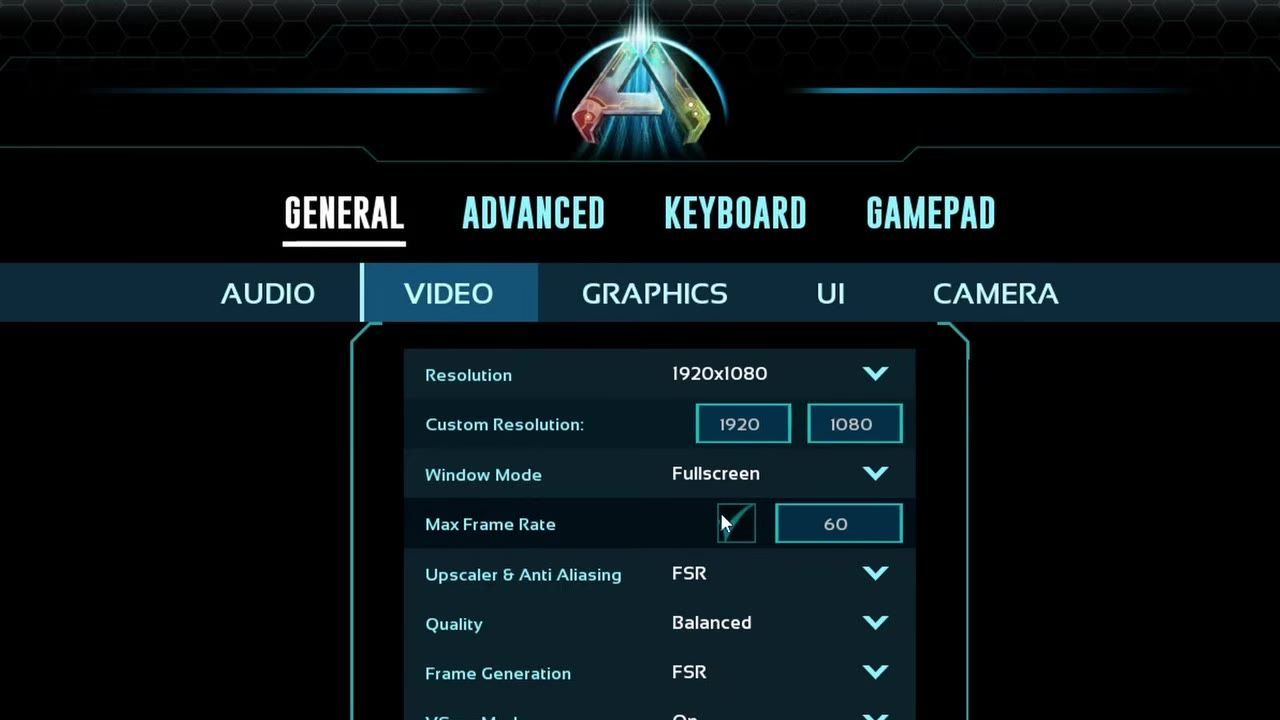
Adjusting video settings can have a significant impact on game performance and stability. Switching to fullscreen mode, limiting FPS, and lowering advanced graphical settings can prevent crashes and improve gameplay fluidity.

Settings menu displays graphics configuration including fullscreen mode and frame rate control. — Frodo the Dodo
steps
- Set windowed mode to "Fullscreen" instead of "Borderless" in the settings menu.
- Adjust FPS settings to limit frame rate within the range of 30–60 FPS for better performance.
- Set graphics quality to "Medium" or lower presets. Reduce advanced graphical settings like shadows, post-processing, and textures to minimize crashes.
- Disable enhancements like DLSS, FSR, and unnecessary UI clutter such as floating names.
Manage Mods and Remove Unused Content
Some mods can cause instability, especially after major updates. To test and remove conflicting mods, start with a clean base and add each mod back individually to identify the problematic ones.

The mod management interface displays a list of installed mods and their statuses. — Frodo the Dodo
steps
- Open the Steam Workshop and unsubscribe from all installed mods.
- Launch ARK: Survival Ascended in Single Player mode to verify stability without mods.
- Reactivate mods one at a time, testing the game for crashes after each activation.
- Update or remove problematic mods to avoid further issues.
FAQ
How do I manage and test mods in ARK: Survival Ascended?
Unsubscribe from all mods in the Steam Workshop to start with a clean base. Then, add back each mod one at a time, testing the game's stability after each addition to identify problematic mods. Update or remove these mods as needed.
How can I increase FPS and optimize performance during gameplay in ARK: Survival Ascended?
To improve FPS and stability, update your drivers, switch to fullscreen mode, limit FPS to 30–60, and lower advanced graphical settings like shadows and post-processing. Disable overlays and close unnecessary apps running in the background to maximize system performance.
Sources
Screenshots on this page are frames from the videos below, used to illustrate the steps they describe. All rights remain with their creators.
- FIX ALL ARK CRASH And Improve FPS, Settings and Ways to Stop ASA Crashing! | ARK Survival Ascended — Frodo the Dodo, November 22, 2025
Checked against:
- Astraeos Heaven & Abyss Update is now live! — ARK: Survival Evolved, 2026-08-27