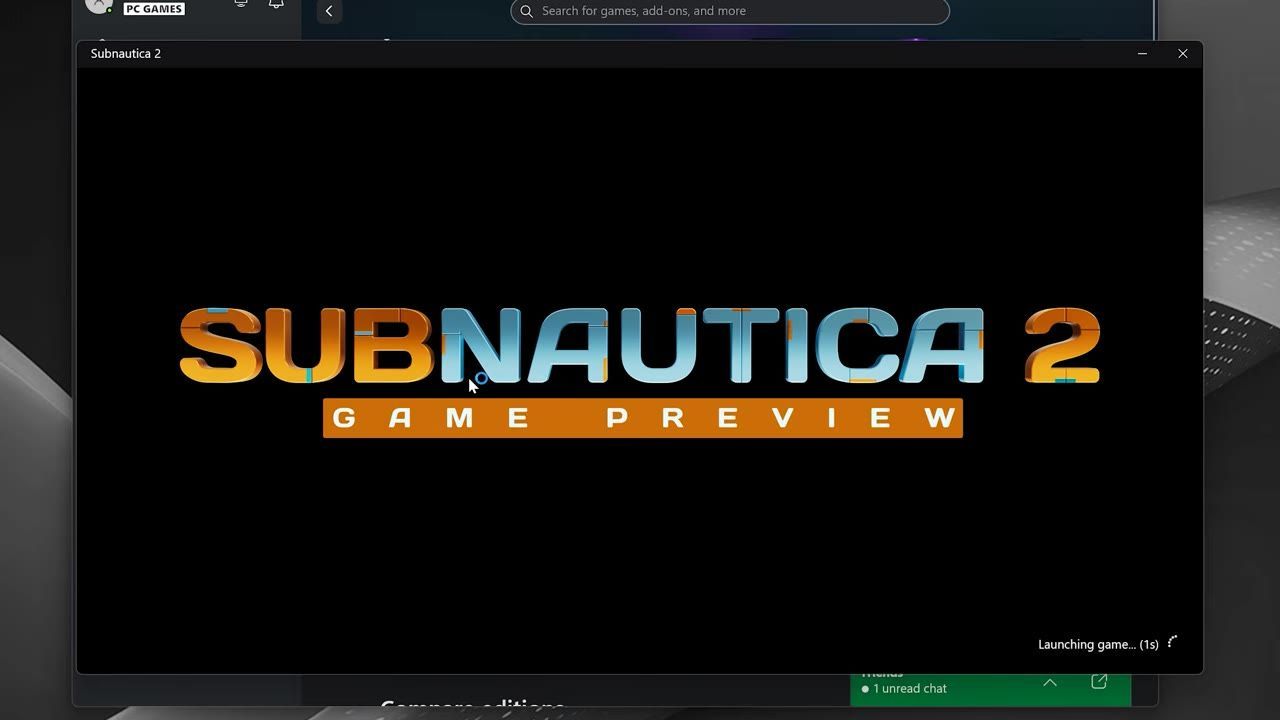
To fix Subnautica 2 crashes, verify game files, update your graphics drivers, ensure Microsoft Visual C++ Redistributables are installed, and optimize graphics settings for higher performance.
Verify and Repair Game Files
If Subnautica 2 crashes or doesn't open, verify and repair game files in the launcher.
steps
- Open your game launcher (such as Xbox app or Steam).
- Locate Subnautica 2 in your game library.
- Navigate to the game settings and select the "Verify game files" or "Repair" option.
- Allow the process to fully complete.
- Relaunch the game to check if the issue is resolved.

The files tab of the game launcher displays the verify and repair option prominently. — TechFixIT
Update Graphics Card Drivers
Outdated or corrupt graphics drivers can often cause crashes in Subnautica 2. Ensure your drivers are updated.
steps
- Open the Start Menu and type "Device Manager" in the search.
- Expand the "Display adapters" section.
- Right-click your graphics card and select "Update driver."
- Select "Search automatically for drivers" to install the latest version detected by Windows.
- If using Nvidia or AMD cards, open the respective app (Nvidia Experience or AMD Radeon Software) and check for updates.
- If crashes persist, consider rolling back drivers to a previous stable version via the manufacturer's website.
Install Required System Components
Missing system components like Visual C++ Redistributables can lead to errors in Subnautica 2. Reinstall key libraries to resolve issues.
steps
- Download Microsoft Visual C++ Redistributables (both x86 and x64 versions).
- Locate the downloaded files and double-click "VC_redist.x64" to start installation.
- Accept the license agreement and install.
- Repeat the process for "VC_redist.x86."
- Restart your PC after installation.

The installation progress window for Microsoft Visual C++ 2015-2022 Redistributable is shown. — TechFixIT
Optimize Graphics Performance Settings
Some crashes stem from mismatched GPU configurations. Configuring settings for optimal performance can help reduce errors.
steps
- Open Windows Settings and navigate to "System."
- Select "Display," then "Graphics Settings."
- Choose to add a "Microsoft Store app" or "Desktop app."
- Locate and select Subnautica 2 from the list.
- Set the GPU preference to "High Performance."
- For Nvidia users, open the Nvidia Control Panel and configure "High Performance" settings under "Manage 3D Settings."
- Apply your changes and restart the game.
Clean Reinstall Graphics Drivers
Recurring graphic-related crashes may require a clean uninstall and reinstall of your drivers.
steps
- Access "Device Manager" and uninstall the current graphics drivers under "Display adapters."
- Go to the manufacturer's website (Nvidia or AMD) and download the latest drivers.
- During installation, select "Custom" and check "Perform a clean installation."
- Complete the installation and restart your PC.

The NVIDIA Graphics Driver installer offers a custom installation for a clean setup. — AarohanTechSol
Disable Integrated Graphics Temporarily
If your system uses both integrated and dedicated GPUs, disabling the integrated GPU can minimize conflicts and improve game stability.
steps
- Open "Device Manager" and expand "Display adapters."
- Right-click the integrated graphics driver and select "Disable device."
- Launch Subnautica 2 using the dedicated graphics card.
- Once you're finished playing, re-enable the integrated graphics driver.

The Device Manager displays Intel(R) Iris(R) Xe Graphics selected under Display adapters. — AarohanTechSol
General Tips for Preventing Crashes
Conclusion
These troubleshooting methods address the most common causes of crashes in Subnautica 2. Verify game files, update drivers, install system components, and configure optimized graphics to ensure smoother gameplay. For persistent issues, consider contacting official support or exploring community forums for further assistance.
FAQ
How do I prevent Subnautica 2 crashes?
To prevent crashes, keep your system updated, manage background processes, avoid using mods after game updates, and ensure your PC meets the minimum requirements.
How do I fix common crash issues in Subnautica 2?
Fix common crashes by verifying game files, updating or cleanly reinstalling drivers, installing Microsoft Visual C++ Redistributables, optimizing GPU settings, or temporarily disabling integrated graphics.
Sources
Screenshots on this page are frames from the videos below, used to illustrate the steps they describe. All rights remain with their creators.
- Subnautica 2 Not Launching/Crashing/Not Loading/Black Screen (Xbox Game Pass PC) FIX🎮🔥 — TechFixIT, May 16, 2026
- Fix Subnautica 2 Error Your Game Might Not Have Exited Correctly Verify System Meets Requirements — AarohanTechSol, May 14, 2026
Checked against:
- Subnautica 2 Early Access 1.2 - Buddy System Update — virtualdon, 2026-08-19
- Update Vlog - Early Access 1.2 (Buddy System) — virtualdon, 2026-08-18
- Subnautica 2 Early Access Hotfix 4 — virtualdon, 2026-07-14