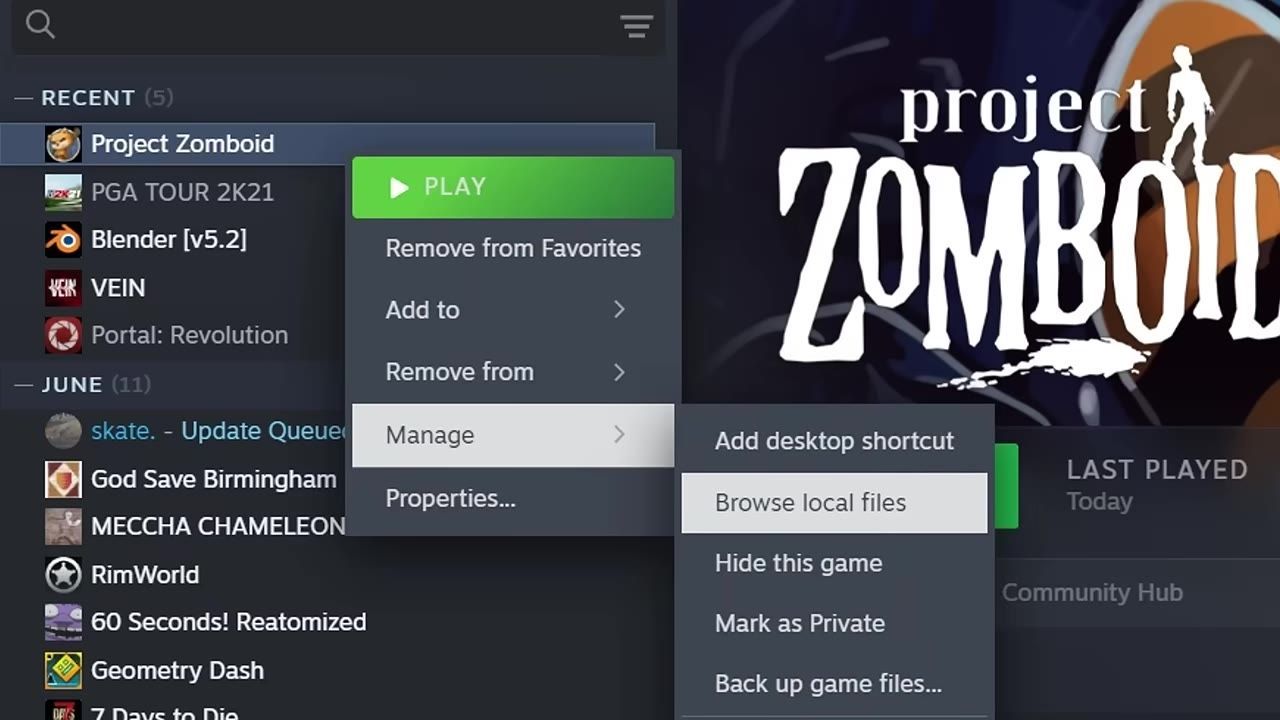
To adjust memory allocation settings for Project Zomboid, locate the game's configuration file in your Steam folder, modify the XMX and XMS values responsibly, and save the file without modifying its extension.
Understanding Memory Allocation in Project Zomboid
Project Zomboid relies on the Java Virtual Machine (JVM) for managing memory allocation. The key parameters within the configuration file, XMX and XMS, determine how much memory is allocated for the game:
- XMX: This value represents the maximum amount of memory the game can use.
- XMS: This value sets the initial amount of memory allocated for the game at startup.
It’s crucial to understand that allocating too much memory can lead to system-wide performance degradation, as excessive allocation reduces the amount of RAM available for other processes.
Locating and Editing the Configuration File
Follow these steps to locate and edit the configuration file for adjusting memory settings:
steps
- Open Steam and navigate to your Project Zomboid library entry.
- Right-click the game title and select Manage -> Browse Local Files.
- In the installation directory, locate the file named
ProjectZomboid64.json. - Open the file in a text editor such as Notepad.
- Find the parameters
-Xmxand-Xms.

The Project Zomboid installation folder, with the 'ProjectZomboid64.json' file highlighted. — AwpShorts
Determining Optimal RAM Values
Choosing optimal RAM values for the game depends on your system's hardware and your specific usage:
Choose suitable RAM allocation
- Allocate no more than 50% of your total system RAM to avoid slowing down your overall PC performance.
- For mod-free saves, a moderate increase above the default 3 GB RAM (e.g., 8 GB) may smooth out chunk loading during activities like driving or zooming out.
- For mod-heavy saves, increasing RAM allocation to around 12 GB can help reduce stuttering and performance issues.
Avoid allocating excessive RAM for the game, as raising the RAM above 8-12 GB yields negligible performance improvements for most setups.
Saving and Managing the Configuration File
Once you have modified the memory allocation settings:
Additional Performance Enhancing Tips
If you are still experiencing performance issues, consider making adjustments to the game’s graphics and sandbox settings:
steps
- Graphics Options:
- Lower texture sizes and enable texture compression.
- Disable or reduce blood decals for significant GPU memory savings.
- Turn off visual features like ragdolls, corpse shadows, dynamic puddles, and high-resolution items.
- Reduce lighting updates and dynamic skybox rendering.
- Set fog and water quality to medium or lower.

The graphics settings screen shows options for texture sizes, blood decals, and particle effects. — AwpShorts
Sandbox Settings:
- Reduce corpse removal time to 24-48 in-game hours.
- Enable debug mode from Steam’s properties for live sandbox adjustments like blood splat lifespan changes.
Optimization Mods:
- Install performance-focused mods such as Tempo and the Project Zomboid Optimizer for enhanced stability on heavily modded saves.

The configuration setup prompt for the Project Zomboid Optimizer mod is displayed. — Sen's StoryForge
FAQ on Memory Allocation and Optimization
FAQ
how to adjust memory settings for Project Zomboid optimization
Memory settings can be adjusted by editing the configuration file located in the Steam installation folder. Modify the XMX (maximum memory) and XMS (initial memory) values responsibly to suit your system's RAM limits.
change RAM allocation for better performance
Increasing RAM allocation beyond the default 3 GB can reduce stuttering and improve performance, particularly when using mods. For vanilla saves, an allocation of 8 GB is recommended, with little benefit going beyond 12 GB even in modded setups.
Sources
Screenshots on this page are frames from the videos below, used to illustrate the steps they describe. All rights remain with their creators.
- Best Settings for New Players | Project Zomboid Build 42 | PZ — CorruptDave, July 21, 2026
- How To Improve Performance in Project Zomboid - (Build 42+) — AwpShorts, August 10, 2026
- Demystifying allocated RAM in Project Zomboid B42. With MODS that improve your FPS. — Sen's StoryForge, August 27, 2026
Checked against:
- 42.20.4 STABLE & 42.19.2 UNSTABLE & 41.78.21 LEGACY Hotfixes Released — AmazingSully, 2026-08-26
- 42.20.3 STABLE Hotfix Released — AmazingSully, 2026-08-17
- 42.20.2 STABLE Hotfix Released — AmazingSully, 2026-08-05