To join multiplayer servers in Enshrouded, use the in-game menu to manually connect by server name, IP, or leverage the 'Join Online Game' option. Below is a detailed step-by-step guide for hosting and connecting to multiplayer games.
Setting Up and Joining Hosted Servers
If you want to locally host a multiplayer game and have friends join, follow these steps:
steps
- Start by ensuring you have a stable and strong internet connection suitable for hosting.
- Launch Enshrouded and navigate to the game menu. Select the "Host" option under "Play Selection."
- Share your server name or IP address with friends so they can join your hosted session.
- Remember, as a locally hosted server, it only stays active while your machine is running the game.

The game menu shows the options Private, Host, and Join under Play Selection. — Scyushi
Using Dedicated Server Hosting Services
Dedicated server hosting services allow for 24/7 access to your Enshrouded game, offering more control and performance, especially for international players.
steps
- Choose a server hosting service that supports Enshrouded.
- Select a hosting plan that matches your player count and desired uptime.
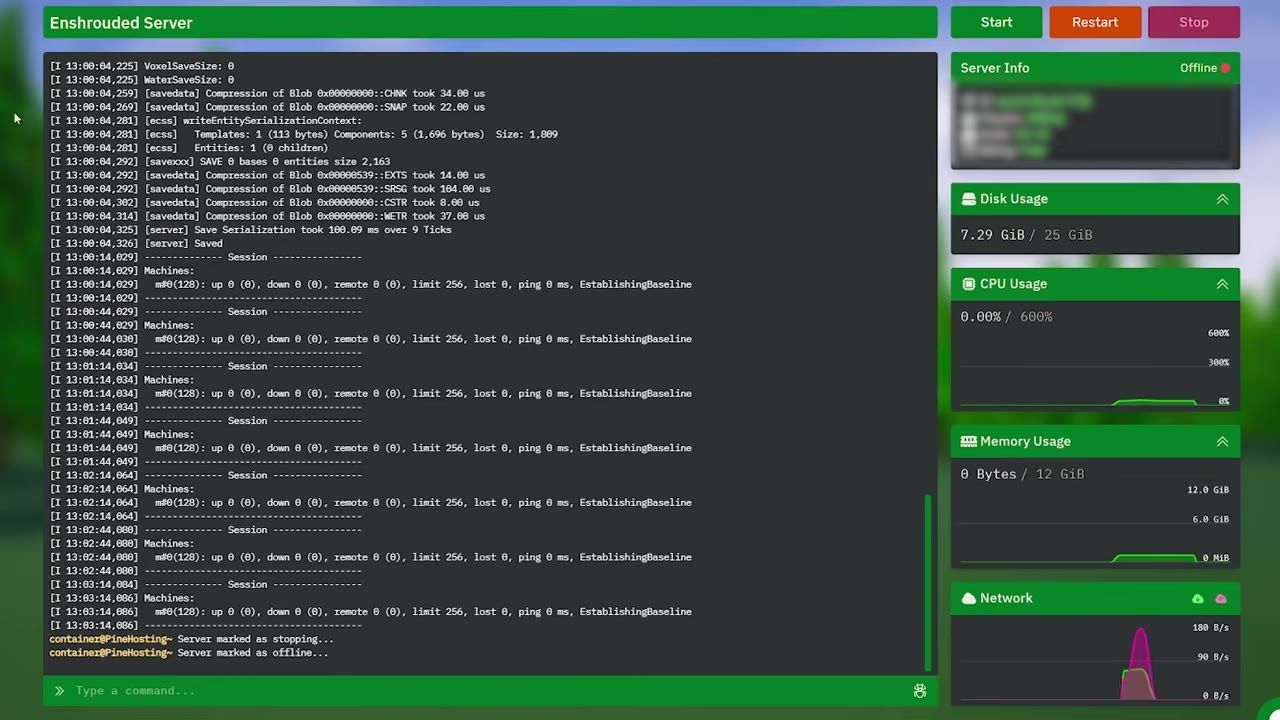
- Use the hosting service dashboard to configure the server. This includes settings for server name, passwords, and additional features.
- Once the server is live, share the IP address or server name with your friends for easy connection using the in-game menu under 'Join Online Game.'

The server hosting dashboard displays server management options and active logs. — Scyushi
Setting Up Dedicated Servers via SteamCMD
For advanced users looking to create a self-hosted dedicated server, SteamCMD provides a detailed and manual setup approach.
SteamCMD Commands for Setting Up Enshrouded Servers
force_install_dir C:/enclosed-server
login <YourSteamUsername>
app_update 2278520 validate
exit
# Above are example commands for setting up and updating an Enshrouded server using SteamCMD.
The SteamCMD interface displays server setup commands on a Windows desktop. — Rockuzza Gaming
Troubleshooting Player Connections
Trouble connecting? Here are common issues and fixes for multiplayer servers in Enshrouded.
Customizing Server Settings
You can edit server settings within the Enshrouded configuration files for tailored gameplay experiences.
steps
- Open the
enshroudedserver.jsonconfiguration file located in your server folder. - Adjust settings like player roles, enemy difficulty, and gameplay presets to your liking.
- Provide unique passwords for roles (admin, guest, etc.) to control access and permissions.
- After editing, save changes and relaunch the server to apply updates and allow connections.

Server configuration file displayed in a text editor with editable settings. — Scyushi
Advanced Joining Options
When regular methods fail, direct IP connection can be used as an alternative.
FAQ
How do I join multiplayer games on Enshrouded?
To join multiplayer servers, use the in-game menu with options to connect via server name, IP address, or browse under 'Join Online Game.' Depending on host type, you may also need a password for access or specific roles.
Sources
Screenshots on this page are frames from the videos below, used to illustrate the steps they describe. All rights remain with their creators.
- How to Set Up a Enshrouded Server in Minutes (Multiplayer Guide) — Scyushi, April 21, 2026
- How to Host an Enshrouded Dedicated Server (2026 Step-by-Step) — Rockuzza Gaming, April 30, 2026
Checked against:
- We're still cooking for 1.0. Here's some news you may have missed! — CoolUsernameBro, 2026-08-27
- Changelog for Hotfix #42 v.0.9.1.2 — CoolUsernameBro, 2026-06-29
- Enshrouded - 1.0 Release Date Reveal — CoolUsernameBro, 2026-06-25