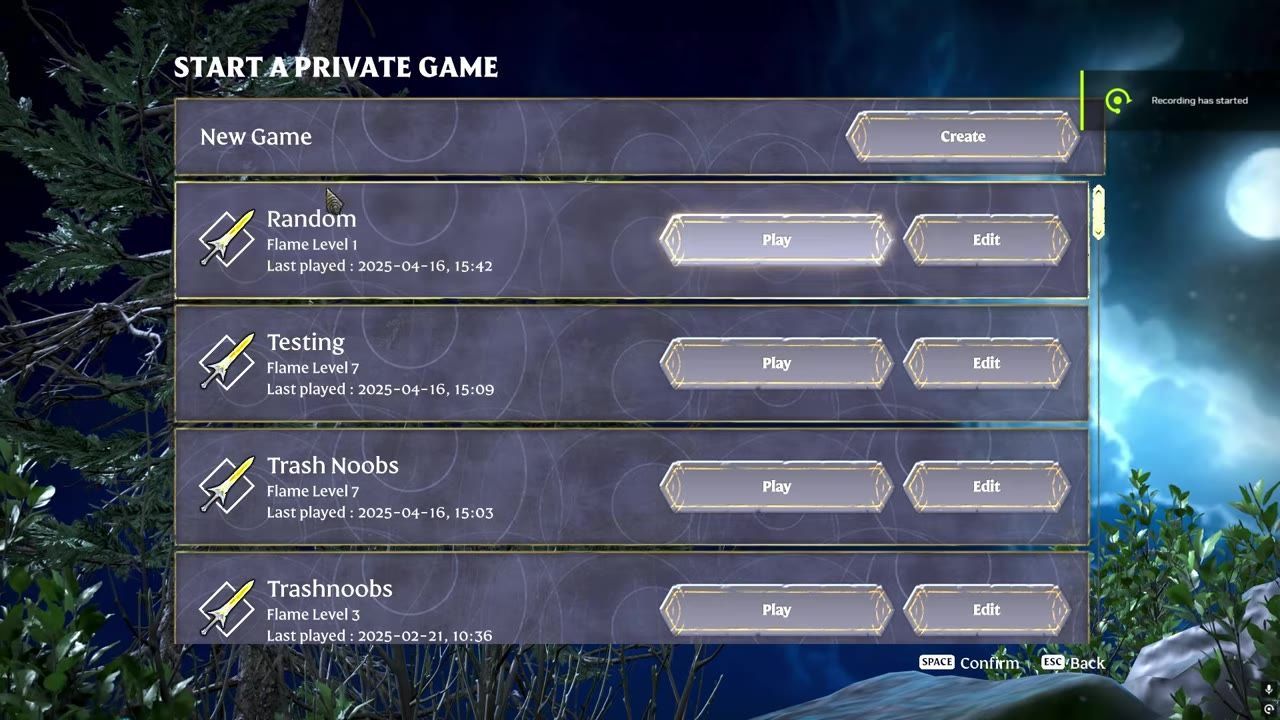
To share or transfer save files in Enshrouded multiplayer, locate the save files on your computer or server, identify the relevant world files, back them up, and rename files to match the slot if replacing an existing world in a new location.
Locate Your Enshrouded Save Files
To manage or transfer save files in Enshrouded, you must locate where these files are stored. Save files can either be on your local machine or in the Steam Cloud. To find them:
prerequisites
- A computer with access to the Enshrouded installation directory.
- Knowledge of whether Steam Cloud is enabled.
- If Steam Cloud is enabled, save files are stored in the Steam Cloud folder. Check the "Steam Cloud" toggle in Enshrouded's properties on Steam under the General tab.
- If Steam Cloud is disabled, use File Explorer to navigate to the following path:
C:\Program Files (x86)\Steam\userdata\[Your Steam ID]\123620\remote
- For shared PCs, ensure you are in the correct folder associated with your unique Steam ID.
Managing Local Saves
When working with local save files, follow these steps to ensure a smooth and safe process:
steps
- Navigate to the local save directory mentioned above.
- Locate the desired save files by sorting the folder by "Date Modified." This will help you identify the most recent saves.
- Back up the save folder or file to a safe location before replacing or modifying files.

A local save folder containing game save files with visible timestamps and details. — Chiselchip
Transfer Save Files From a Server
If your world save is hosted on a server, you can download and transfer it to your local machine for multiplayer or continued gameplay. Here's how:
steps
- Access the server's management panel and locate the latest save file.
- Download the save file to your local computer, typically to your Downloads folder.
- Navigate to the local save folder on your computer.
- Copy and rename the downloaded server file to match the name of the local save file you wish to replace.
- Drag the renamed file into your local save directory and confirm the file replacement.
- Launch the game to verify the transferred save file is recognized.

Files are displayed in File Explorer with one selected for renaming. — Dusty Loot
Handling Steam Cloud Saves
Managing save files with Steam Cloud enabled adds additional complexity but can be done if you follow these instructions:
steps
- Check if Steam Cloud is enabled in Enshrouded's Steam properties under "General" settings.
- Create a placeholder world in an unused or disposable world slot.
- Enter the placeholder world, exit, and note the modification time for the files.
- Locate the Steam Cloud save directory.
- Rename the downloaded files using the name format of the placeholder world files.
- Replace the placeholder files with the renamed downloaded files. This prevents Steam Cloud from overwriting the changes.
- Wait for Steam Cloud to sync and confirm that the new save is loaded correctly.

Two File Explorer windows showing files in a Steam Cloud save directory and a local directory. — Chiselchip
Avoiding Common Issues
When transferring or sharing saves, keep in mind the following to minimize risks:
Frequently Asked Questions
FAQ
how to share progress between players in Enshrouded multiplayer
Save files can be shared by identifying the world files from either local storage or a server, renaming them appropriately, and transferring them to your or your friend's save folder. In Steam Cloud-enabled setups, you must create a placeholder world and replace its files to successfully transfer progress.
What happens if I overwrite the wrong save?
Overwriting the wrong save replaces the existing data and may cause the loss of valuable progress. Always back up your save files before proceeding to avoid accidental overwrites.
Can I transfer save files with Steam Cloud enabled?
Yes, but you must replace an existing placeholder world while adhering to proper naming conventions. Steam Cloud automatically synchronizes changes, so you need to ensure it recognizes the transferred file as part of the same save slot.
Sources
Screenshots on this page are frames from the videos below, used to illustrate the steps they describe. All rights remain with their creators.
- How to Transfer Your Enshrouded Server Save to Local, GTXGaming Host — Dusty Loot, April 18, 2025
- Enshrouded: World Save Files (Full Tutorial) — Chiselchip, December 11, 2025
- Enshrouded - Adventure Sharing Anleitung — Swabian_Alex, April 23, 2026
Checked against:
- We're still cooking for 1.0. Here's some news you may have missed! — CoolUsernameBro, 2026-08-27
- Changelog for Hotfix #42 v.0.9.1.2 — CoolUsernameBro, 2026-06-29
- Enshrouded - 1.0 Release Date Reveal — CoolUsernameBro, 2026-06-25